What’s in this guide
Exploring the best drawing pads for MacBook Pro involves balancing display quality, pen sensitivity, and seamless software compatibility. The options below cover standalone tablets (no computer needed) and screen-enabled displays that work well with macOS, offering precise input, rich color, and ergonomic design for long sessions. Each product is evaluated for color accuracy, pen responsiveness, and ease of use with Mac workflows such as Photoshop, Procreate (via alternative apps), and vector/raster design tools.
| Product | Brand | Key Highlight |
|---|---|---|
| XP-Pen Magic Drawing Pad 12.2 Inch Standalone | XP-Pen | Standalone 16K pen pressure, paper-like screen |
| Huion Kamvas Pro 16 Drawing Tablet | Huion | Full-laminated display with anti-glare glass |
| XP-Pen Artist 15.6 Pro V2 | XP-Pen | Screen-based tablet with Red Dial and 16K pressure |
| XP-Pen Upgraded Artist13.3 Pro V2 | XP-Pen | High-precision X3 Pro stylus, 8 customizable keys |
| XP-Pen 13.3″ Drawing Tablet With Screen – Artist13.3 Pro V2 | XP-Pen | 16K pressure, 8 shortcut keys, Red Dial |
XP-Pen Magic Drawing Pad 12.2 Inch Standalone

The XP-Pen Magic Drawing Pad 12.2 Inch operates as a standalone device, removing the need for a computer. It features a 12.2-inch AG-etched display with a 2160×1440 resolution and a wide color gamut, delivering paper-like drawing with vivid color. The X3 Pro Slim Stylus offers up to 16K pressure sensitivity for nuanced strokes and tilt support up to 60 degrees. The screen’s TÜV Rheinland eye-friendly certification and soft light treatment help reduce eye strain during long sessions. This model is suitable for Mac users who want a portable, all-in-one drawing solution without a wired setup.
Key features include: 16K pressure levels, tilt recognition, a wide color gamut (115% sRGB, 16.77 million colors), and a compact, portable form. While it’s ideal for on-the-go Mac projects, users should consider whether a standalone tablet aligns with their workflow, especially if they rely on specific Mac-only design software.
Huion Kamvas Pro 16 Drawing Tablet
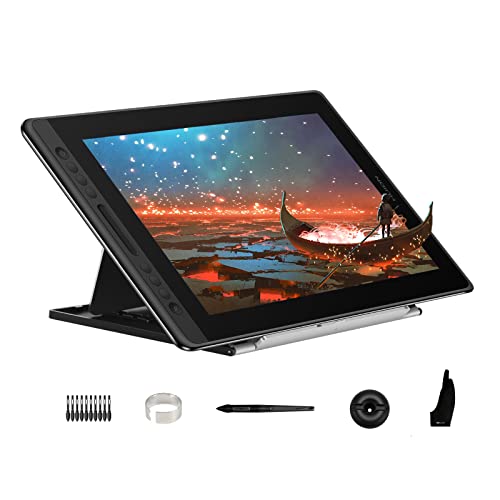
The Kamvas Pro 16 blends a 15.6-inch full-laminated display with anti-glare glass for sharp, vivid visuals. It supports a broad color gamut (120% sRGB, 92% AdobeRGB) and 178-degree viewing angles, delivering accurate color reproduction for Mac-based workflows. The device includes six express keys and a touch bar to speed up common actions, helping artists manage layers, brushes, and navigation without constant software switching. Its integrated stand offers flexible viewing angles, which can reduce wrist strain during prolonged sessions.
Pros include strong color accuracy, a comfortable drawing surface, and easy shortcut customization. Considerations involve the need for a compatible USB-C/HDMI setup and ensuring driver support aligns with your macOS version. The anti-glare surface reduces reflections in bright environments, aiding long-term comfort.
XP-Pen Artist 15.6 Pro V2

This screen-equipped drawing monitor from XP-Pen emphasizes a 16K pressure pen (X3 Pro) and a dedicated Red Dial for quick brush size, navigation, and zoom controls. It requires connection to a computer, making it well-suited for MacBook Pro users who work with macOS graphic suites and external displays. A fully laminated display and a wide color gamut enhance color fidelity, while the adjustable stand helps optimize posture during long drawing sessions. The device prioritizes precision with minimal latency, which is critical for expressive line work and digital painting.
Highlights include the Red Dial for workflow efficiency, high-pressure sensitivity, and accurate color. Potential drawbacks are the need for ongoing driver/software management and ensuring compatible ports (USB-C/HDMI) on your Mac setup.
XP-Pen Upgraded Artist13.3 Pro V2

The Artist13.3 Pro V2 emphasizes a 16K pressure-sensitive X3 Pro stylus, 13.3-inch full-laminated display, and a red dial plus eight customizable keys to streamline workflow. The screen delivers true-to-life color with 99% sRGB and 89% Adobe RGB coverage, providing accurate previews for Mac-based designers and illustrators. Tilt support enhances shading dynamics, and the ergonomic design reduces wrist strain during extended sessions.
Considerations include ensuring macOS compatibility with the latest driver package and evaluating whether the 13.3-inch screen size matches your portable Mac setup. This model suits artists who value precision, intuitive control dials, and a compact drawing area.
XP-Pen 13.3″ Drawing Tablet With Screen – Artist13.3 Pro V2

This model highlights a 16K pressure level stylus with tilt support, a True-to-Life color display (13.3″ FHD IPS, 99% sRGB), and the Red Dial with eight shortcut keys. It is designed for Mac, PC, and Android compatibility, making it versatile for various creative workflows. The dial and quick-access keys are positioned to reduce hand movement during complex tasks like shading, zooming, and brush adjustments. This option is ideal for designers seeking high accuracy and customizable shortcuts in a mobile form factor.
Buying Guide
- Mac compatibility and drivers: Ensure the tablet’s drivers are actively maintained and compatible with your macOS version. Some models require software updates to maintain seamless integration with macOS drawing apps.
- Standalone vs. screen: Standalone tablets (no computer needed) offer portability, while screen-equipped tablets require a computer but provide direct on-screen drawing without an external monitor.
- Pen pressure and tilt: Look for 16K or higher pressure levels and tilt support to achieve nuanced strokes, shading, and calligraphy effects. Higher latency reduction improves real-time responsiveness.
- Color accuracy: A wide color gamut (sRGB, Adobe RGB) and good contrast improve preview accuracy for print or digital work. Laminated displays reduce parallax for precise cursor alignment.
- Size and ergonomics: Consider screen size (12–16 inches is common) and stand adjustability to maintain comfortable posture during long sessions.
- Shortcut customization: Key dials, express keys, and programmable buttons can speed up workflows in common Mac apps like Photoshop, Illustrator, and other design tools.
- Connectivity: Ensure available ports (USB-C, HDMI) match your MacBook Pro ports or hubs. Cable management and power needs can affect setup.
- Software ecosystem: Check compatibility with your preferred apps (photo editing, vector graphics, illustration, animation). Some tablets offer features that complement Mac-specific workflows.
- Portability vs. performance: Standalone models prioritize portability, while larger display tablets offer deeper workspace—choose based on where you draw most often.
In sum, the best drawing pad for a MacBook Pro depends on whether you value portability (standalone units) or on-screen drawing with a larger display (screen tablets). All listed options provide high-precision input, strong color fidelity, and thoughtful design to fit diverse Mac-based creative workflows.